
Inside Inspector
One workbench.
Every closer look.
Professional trading card inspection, live on your screen.
For restorers, card shops, grading-preparation teams and serious collectors. Work with a live camera or a saved scan, examine the detail and document your own observations.
Move the card.
Follow the detail, live.
Watch a crease in this real CardRevive inspection as the card moves under the camera. Original and colour-inverted views show the same live feed side by side.
Use a browser-accessible camera or compatible USB microscope. Your camera, lighting and viewing angle determine what is visible.
Keep the original
in sight.
Freeze a useful camera frame or load a saved scan. Keep the original beside a filtered view as you change contrast, isolate colour or examine edges.
Use split view, a zoom lens or enlarged corners to look closely without losing your place. Capture the front and back into separate image slots.
The screenshots below follow a separate scanned card through the actual workbench.
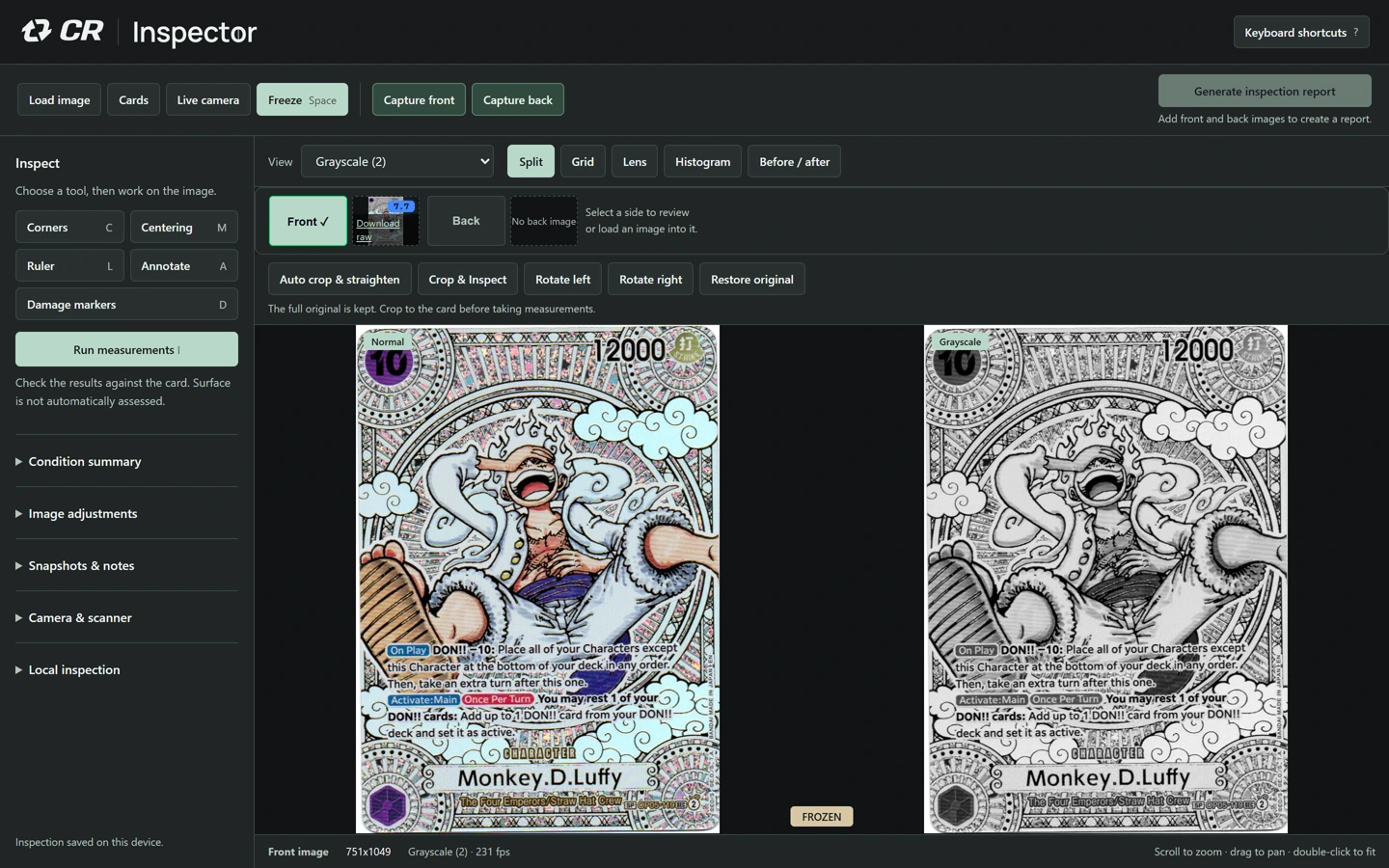
Keep the whole image.
Choose what to change.
Your image opens as supplied. Rotate it left or right, select a manual crop, or preview an automatic crop and straightening before applying it.
Compare the proposed result with the current image. Keep it, cancel it, or restore the original later.
Check every edge before applying a correction. Inspector explains when a change will clear marks or reset calibration.
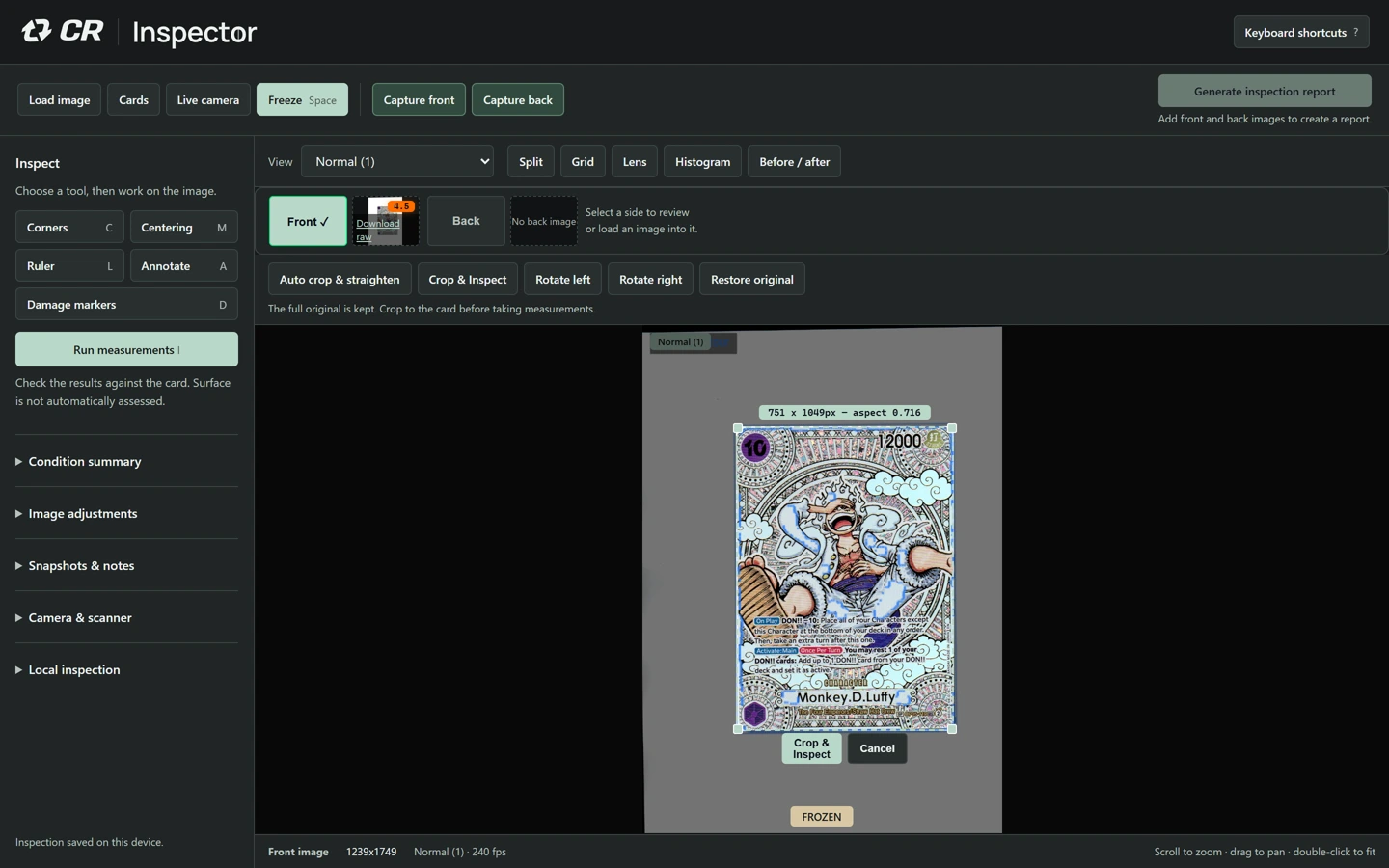
Look at the edges.
Check the measurements.
Examine individual corners, check the centering guides against the card and calibrate the ruler to a known distance. Use the tools to support a repeatable inspection.
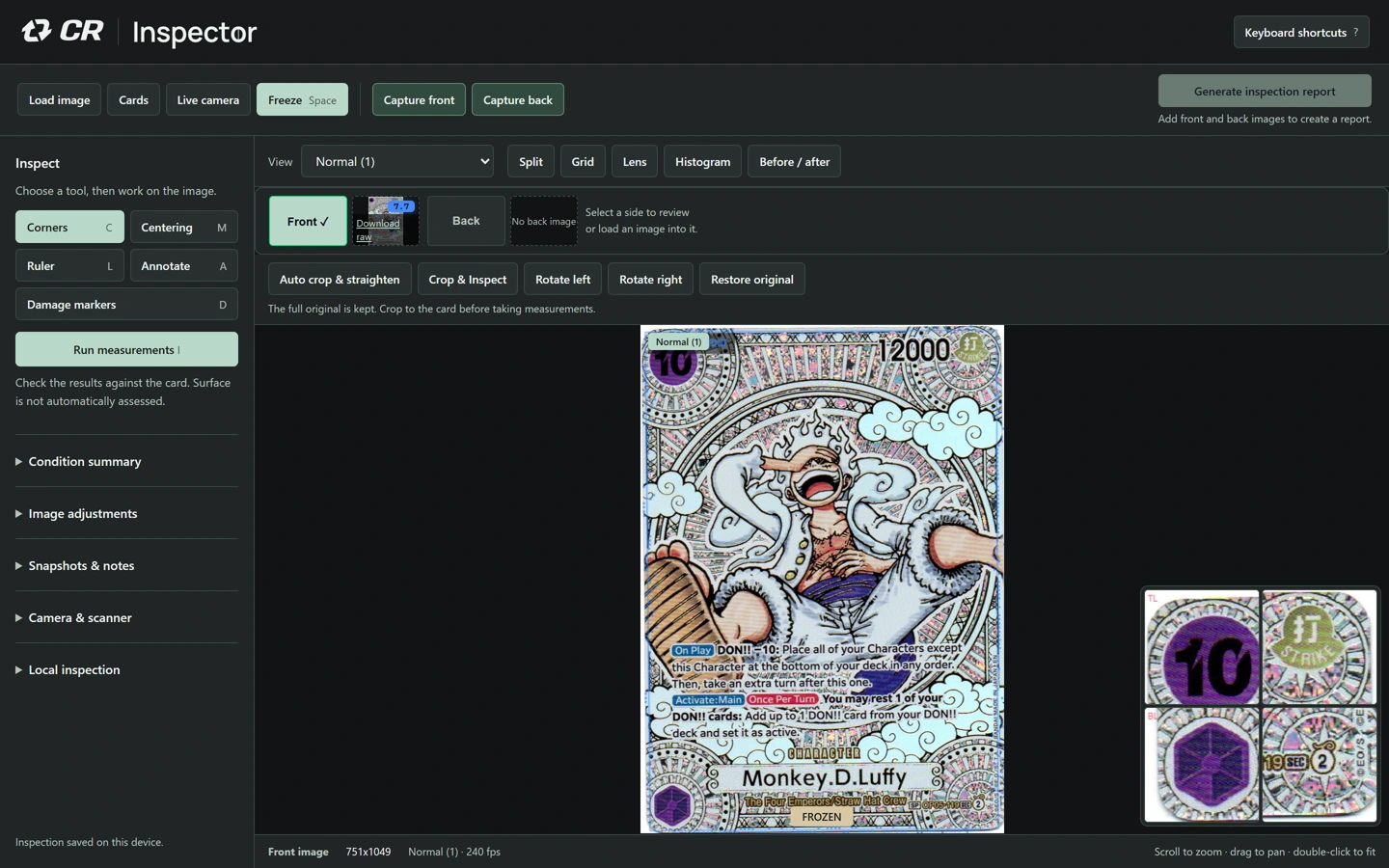
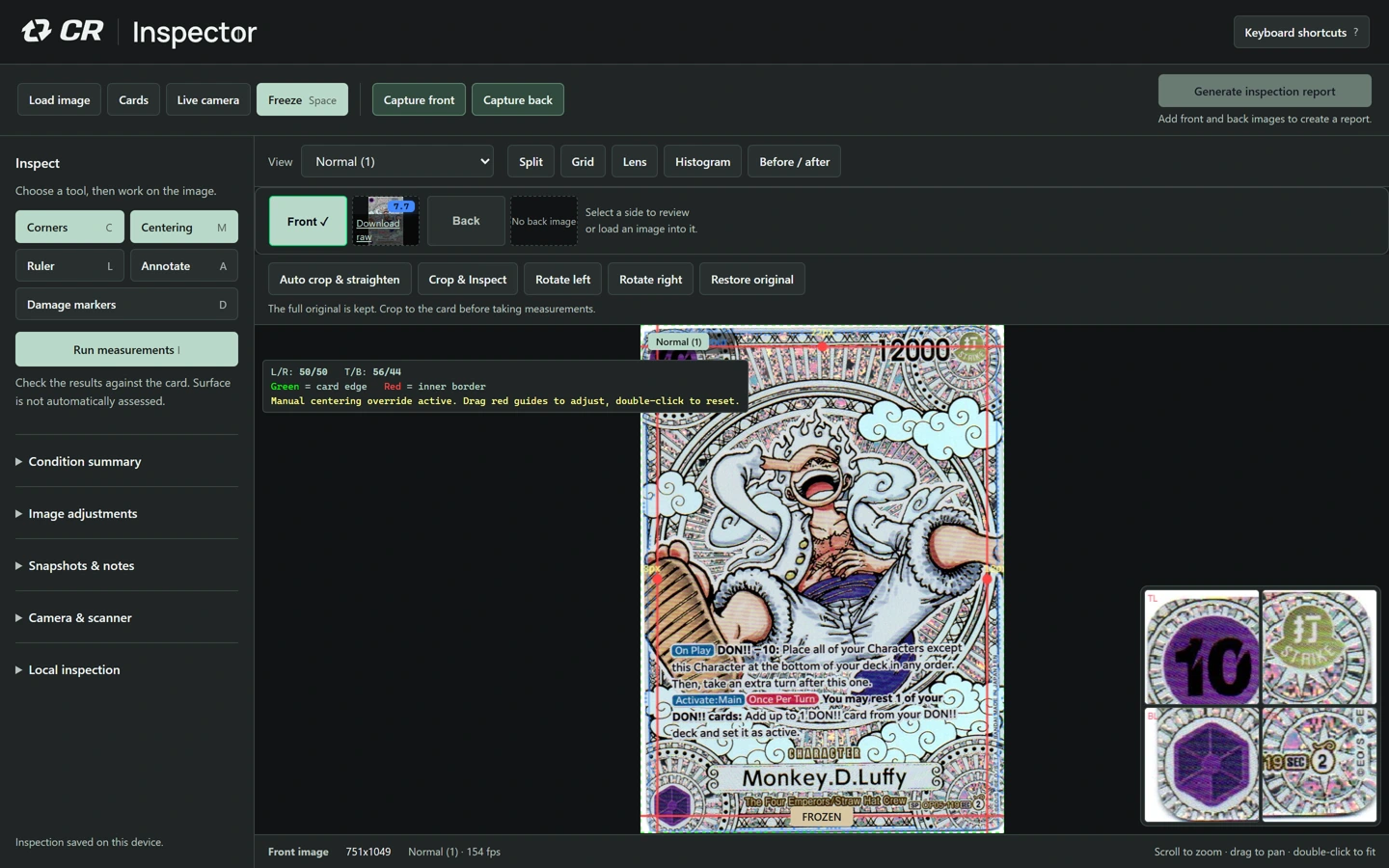
Your judgement stays central. Automatic measurements depend on the source image and the selected card boundary. Crop to the card, review the guides and check the result.
Condition estimates are inspection aids. Surface is not automatically assessed, and the output is not an official grading result.
Show what you saw.
Keep a clear record.
Draw an annotation, place a damage marker and add a note in your own words. Front and back keep their own observations as you move between them.
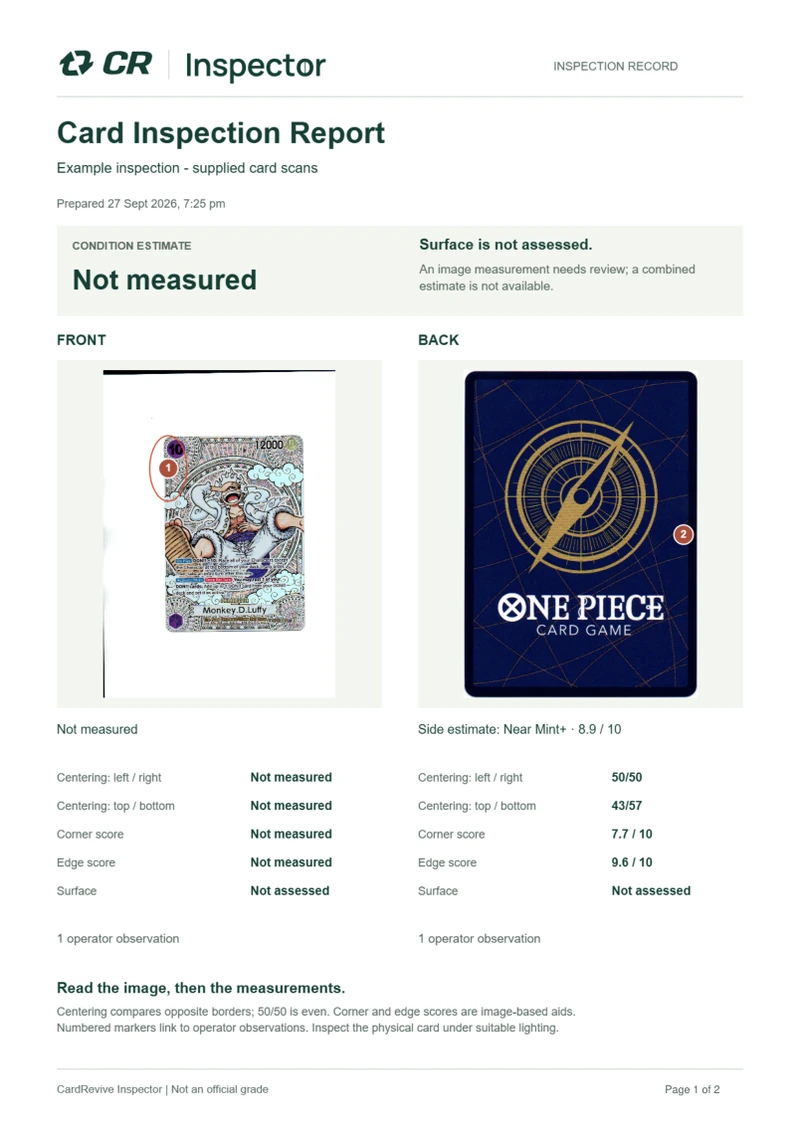
Download a clearly laid-out PDF with front/back card images, annotations, measurements and numbered observations. Longer notes continue onto additional pages. The PDF is created on your device.
Download a sample PDF reportUseful for intake records, condition discussions and documenting work. Example markers in these screenshots demonstrate the tools; they are not a diagnosis of the pictured card.
Your cards.
Ready to pick up again.
Inspection images are processed in your browser and are not sent to an AI service. For scans, choose Save to cloud to keep a private card project in your account.
A local draft keeps your front/back images, notes, calibration and centering guides on this device. Return to it in the same browser, or clear it when you finish.
Load from cloud to reopen a saved scan project on another device. Export and import portable project files to keep a separate copy. Camera sessions stay out of cloud projects.
Work in one autosaving tab. Local browser storage can be cleared, so save or export the work you need to retain.
How Inspector handles your dataSee the workbench.
Decide how it fits your work.
Follow a recorded inspection, then explore the plans.